CYGM Build one

↑↓ to move Enter to open Esc to close ? for shortcuts

00 Gallery v1.1.10 Release

2026-10-15

What it actually looks like

Every screenshot came off a real unit at its native 320 by 240, and every photograph is of a device I built and use. Tap any screenshot to see it bigger.

  • 320×240Native panel
  • 2.8″Diagonal
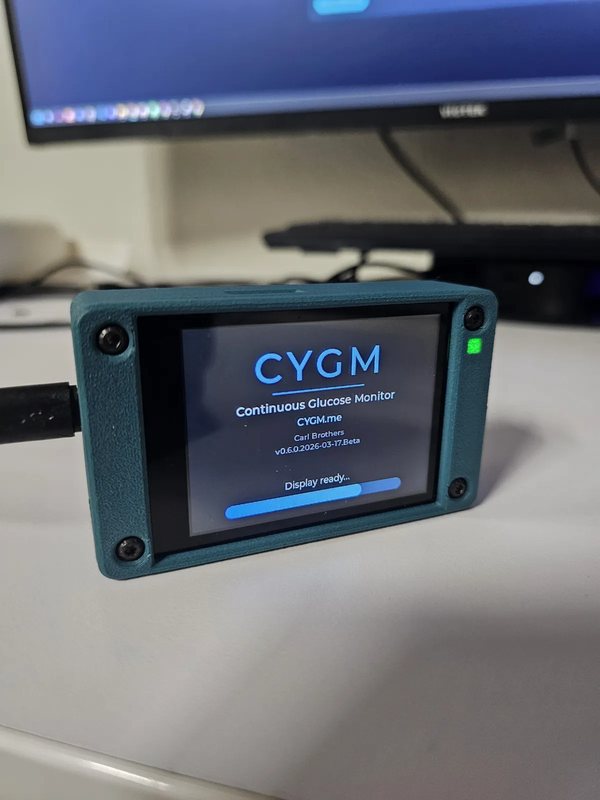
A CYGM in a teal printed case standing on a white desk in front of a monitor, showing the boot splash with the CYGM wordmark and a Display ready progress bar.

01 The home screen

The screen it sits on all day

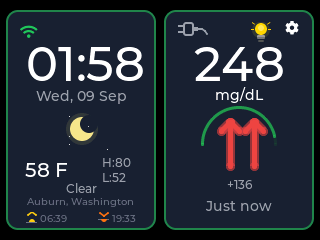
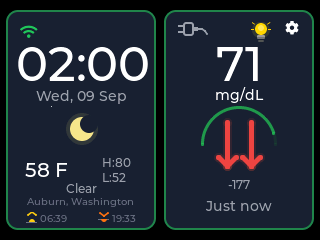
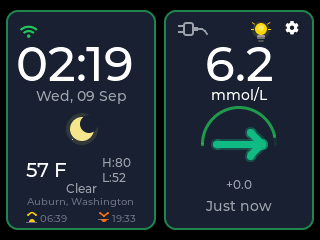
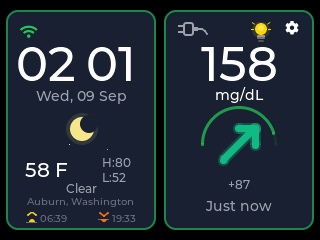
The clock and the weather live on the left, the reading and its trend on the right. From across a room you read the colour and the arrow before the number.
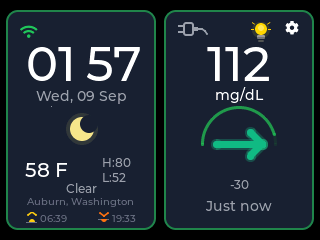
CYGM home screen reading 112 mg/dL with a green flat arrow on a green arc, beside a clock reading 01:57 and a weather panel.
Home In range, holding steady
CYGM home screen reading 158 mg/dL with a single green arrow angled upward for a slow rise.
Home Rising slowly
CYGM home screen reading 248 mg/dL with two red arrows pointing up for a fast rise.
Home High and climbing fast
CYGM home screen reading 71 mg/dL with two red arrows pointing down for a fast fall.
Home Low and falling fast
CYGM home screen in mmol/L reading 6.2 with a green flat arrow.
Home The same reading in mmol/L
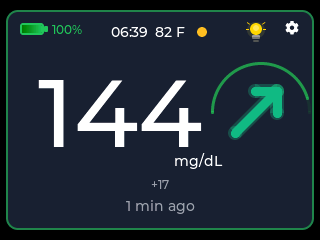
CYGM home screen expanded to a single panel, showing 144 mg/dL with a green arrow angled up and a battery and clock strip along the top.
Home Expanded to one panel
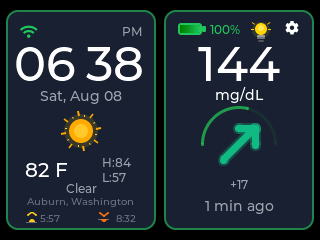
CYGM home screen at 06:38 PM on a summer afternoon, showing a full battery at 100 percent and 144 mg/dL with a green arrow angled up.
Home On battery, twelve-hour clock
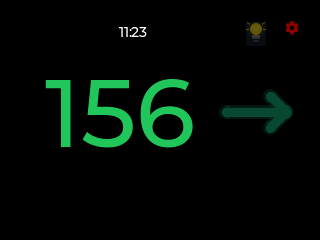
CYGM night face showing 156 in large green figures with a flat arrow on a black screen.
Home The night face

02 When it isn't working

A reading that stopped arriving should look like one

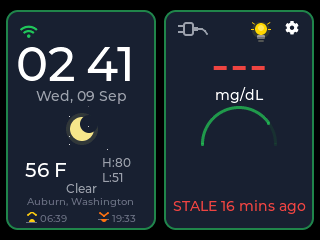
The failure I care most about is a screen still showing a number that stopped being true. So the device ages a reading out in stages, and says so in words.
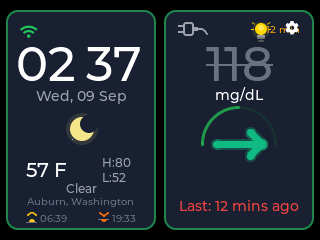
CYGM home screen with the glucose value greyed out and struck through, and a red line reading Last: 12 mins ago.
No data Going stale at twelve minutes
CYGM home screen with the glucose value replaced by three dashes and a red line reading STALE 16 mins ago.
No data Given up at sixteen
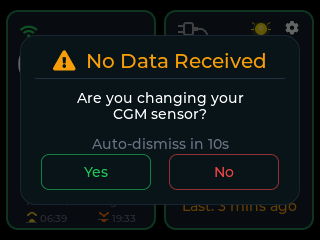
CYGM card headed No Data Received asking whether you are changing your CGM sensor, with Yes and No buttons and a note that it auto-dismisses in ten seconds.
No data Asking whether it's a sensor change

03 Alarms

Four tiers, and you set every one of them

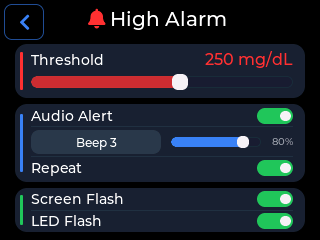
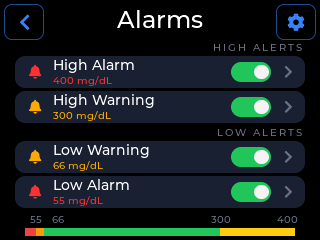
Each tier has its own threshold, tone and volume, and the two urgent ones can be told to keep sounding until somebody deals with them.
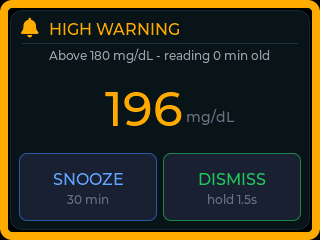
CYGM full-screen alarm titled HIGH WARNING with an amber border, reading Above 180 mg/dL and a large 196 mg/dL, with Snooze 30 min and Dismiss hold 1.5s buttons.
Alarms An alarm takes the whole screen
CYGM alarms list showing High Alarm at 400, High Warning at 300, Low Warning at 66 and Low Alarm at 55, each with a toggle switch.
Alarms The four tiers
CYGM High Alarm editor showing a 400 mg/dL threshold, an audio alert row with Beep 3 at 80 percent, and switches for Keep Sounding, Screen Flash and LED Flash.
Alarms Editing one tier
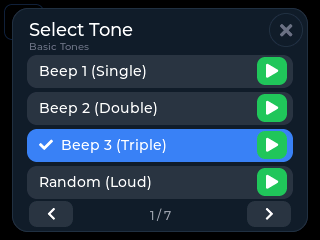
CYGM Select Tone screen listing Beep 1 Single, Beep 2 Double, Beep 3 Triple and Random Loud, each with a green play button, on page 1 of 7.
Alarms Twenty-eight tones, all auditionable
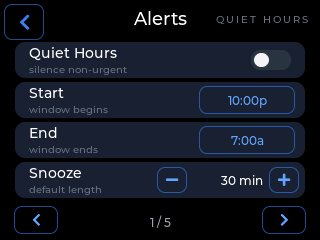
CYGM Alerts screen showing a Quiet Hours switch that silences non-urgent alarms, a 10:00p start, a 7:00a end and a 30 minute default snooze.
Alarms Quiet hours

04 Setting it up

Everything is done on the device

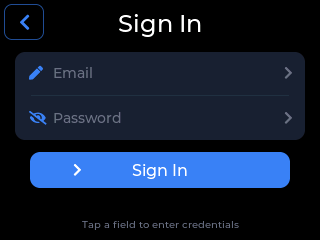
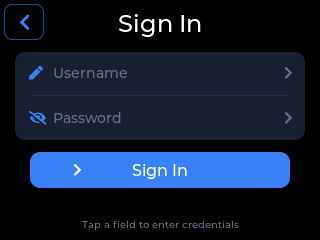
No companion app, no web portal. You pick your service and type your credentials on the touchscreen. The sign-in forms look almost identical to each other, so watch the field labels: that is the only thing on screen that tells you which one you're on.
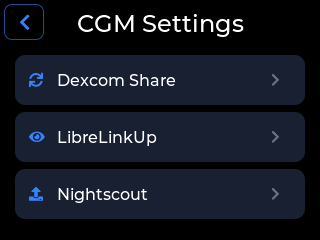
CYGM CGM Settings screen listing Dexcom Share, LibreLinkUp and Nightscout as the three choices.
Setup Pick your service. The only screen that names all three
CYGM Sign In screen with a Username field and a Password field above a Sign In button, which is the Dexcom Share form.
Setup Dexcom asks for Username and Password
CYGM Sign In screen with an Email field and a Password field above a Sign In button, which is the LibreLinkUp form.
Setup LibreLinkUp asks for Email and Password
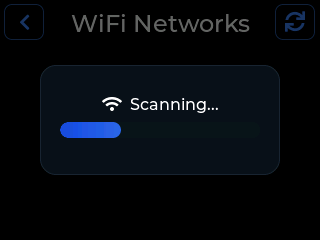
CYGM WiFi Networks screen mid-scan, showing a progress bar and the word Scanning.
Setup Scanning for WiFi
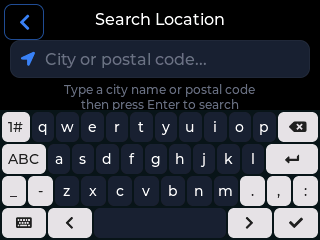
CYGM Search Location screen with a City or postal code field above a full on-screen keyboard.
Setup Searching for your town

I have not got a clean capture of the Nightscout form yet. It asks for your server address and an optional API token instead of the two fields above. The Nightscout page walks through it properly.

05 Everything else

History, brightness, updates and the small print

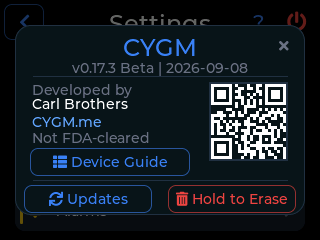
The rest of the device. Worth stopping on the About card: the words Not FDA-cleared sit on the screen beside the version number, not only in the copy on this site.
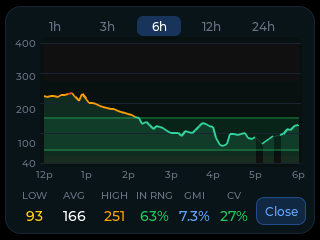
CYGM trend chart plotting six hours of glucose against the target band, with a low of 93, an average of 166, a high of 251 and 63 percent in range beneath it.
Settings Six hours, and one to twenty-four
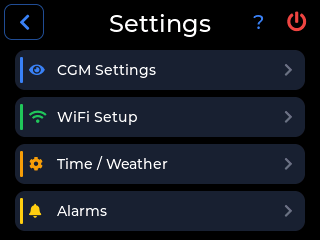
CYGM Settings menu listing CGM Settings, WiFi Setup, Time / Weather and Alarms.
Settings The settings menu
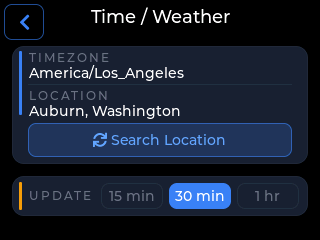
CYGM Time / Weather screen showing a timezone of America/Los_Angeles, a location of Auburn, Washington, a Search Location button and a 30 minute update interval.
Settings Timezone and weather
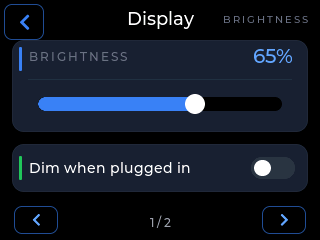
CYGM Display screen showing a brightness slider set to 65 percent and a Dim when plugged in switch.
Settings Brightness
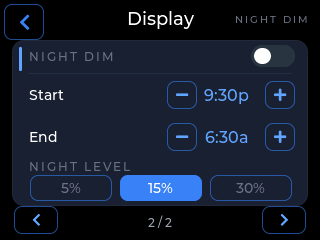
CYGM Display screen showing a Night Dim switch, a 9:30p start, a 6:30a end and a night level of 5, 15 or 30 percent.
Settings Night dim
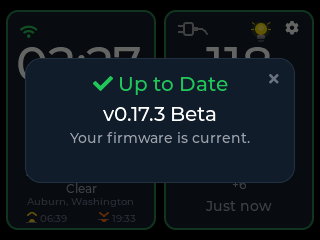
CYGM update check result showing a green tick, the words Up to Date, the installed firmware version, and Your firmware is current.
Settings Checking for an update
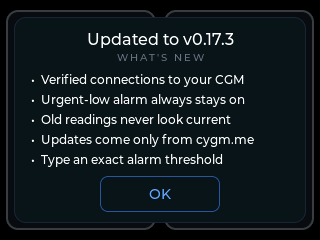
CYGM What's New card headed Updated to the version just installed, listing five changes in plain English above an OK button.
Settings What changed, in plain English
CYGM About card showing the installed firmware version and its date, Developed by Carl Brothers, CYGM.me, the words Not FDA-cleared, a QR code, and Device Guide, Updates and Hold to Erase buttons.
Settings About, disclaimer included

The chart on the device covers the last day. If a memory card is fitted, the same readings can be read back in the card viewer.

06 The device itself

Three parts in a printed case

Units I built and live with, photographed where they sit. The cases came off a printer at home, in whatever filament was loaded that week. These were taken in the very early days, so what is on the screens looks different from the firmware you would flash today. The cases and the rooms are real; the software has moved on.
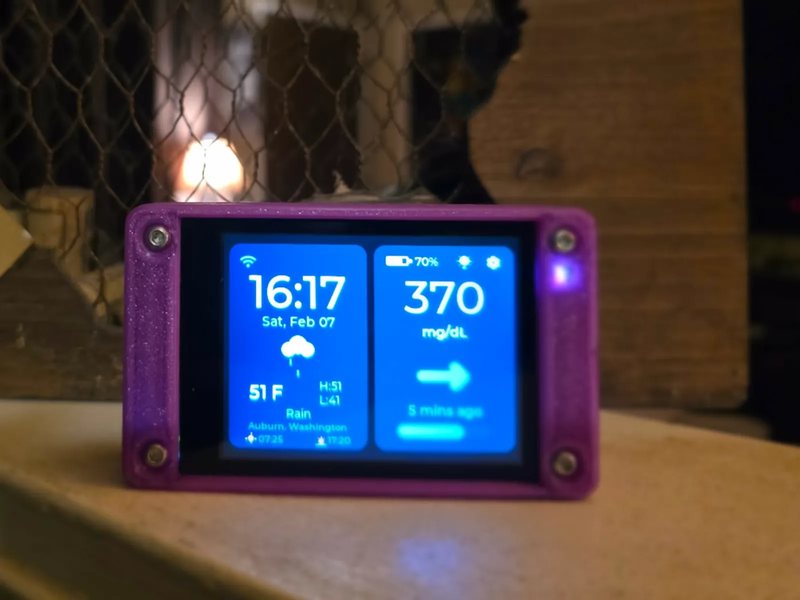
A CYGM in a purple printed case on a wooden ledge in front of a fireplace, its split home screen showing the clock, the weather for Auburn, Washington and a reading of 370 mg/dL with a flat arrow.
Photograph On a ledge in front of the fireplace. Clock and weather on the left, the reading on the right.
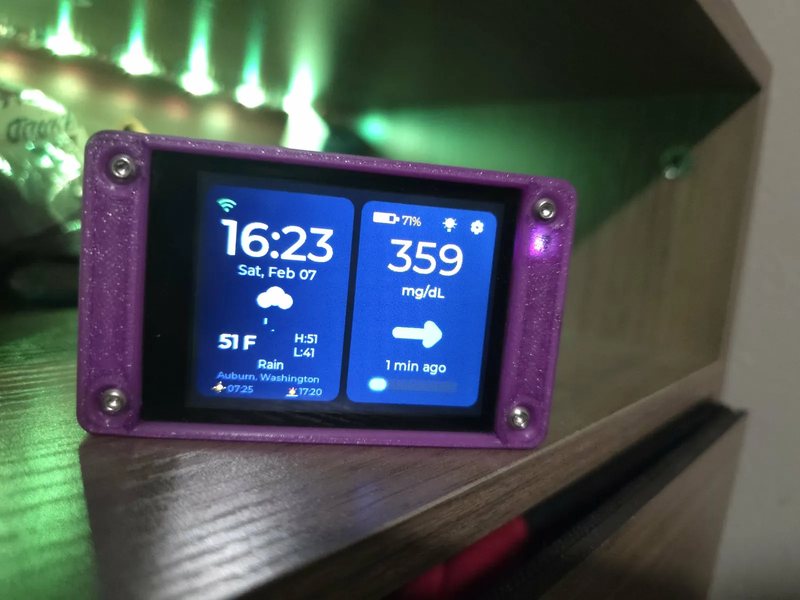
A CYGM in a purple printed case angled on a dark wooden shelf edge under green accent lighting, showing 359 mg/dL with a flat arrow and a 71 percent battery.
Photograph On a shelf in the front room, which is where mine lives.
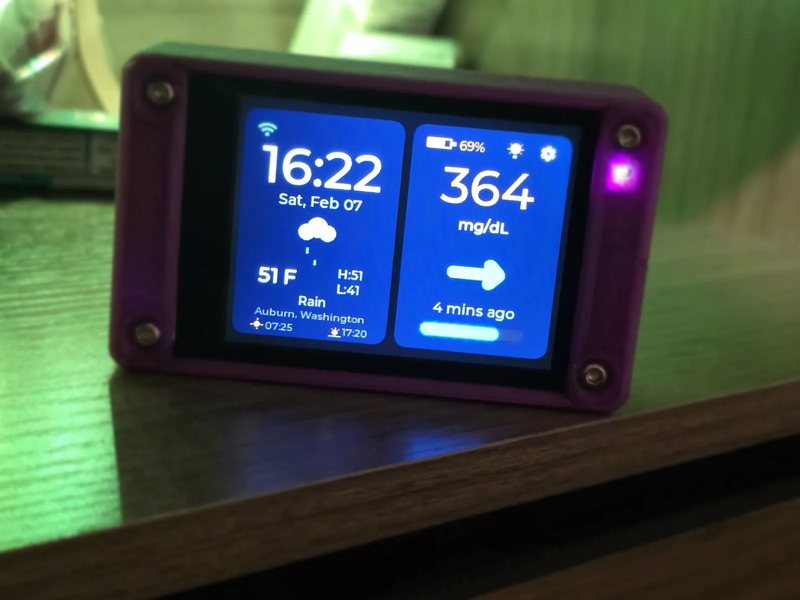
A close three-quarter view of a CYGM in a purple printed case on a wooden surface washed in green light, the screen filling the frame with 364 mg/dL and a 69 percent battery, and the violet status LED visible on the right edge.
Photograph Closer in. The status LED glows on the right edge.
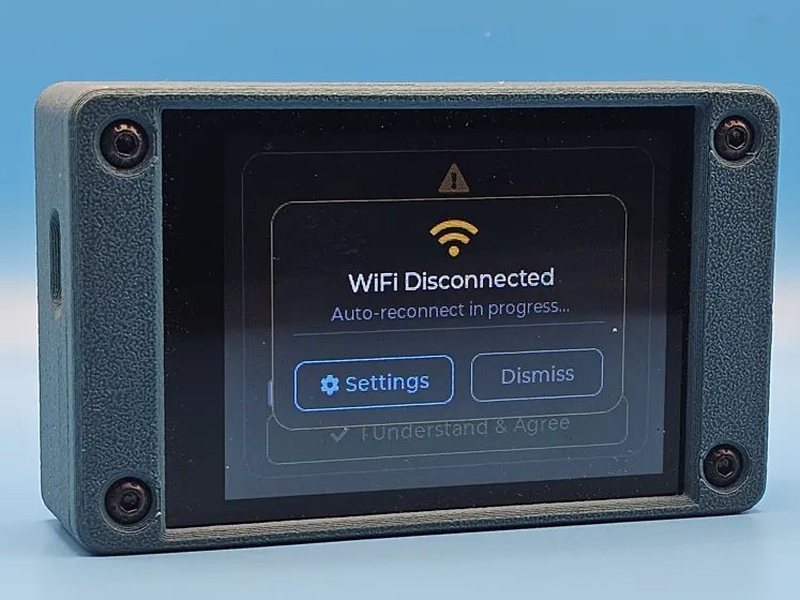
A CYGM in a grey printed case against a blue backdrop, showing a WiFi Disconnected notice with auto-reconnect in progress and Settings and Dismiss buttons.
Photograph A grey case saying plainly that the WiFi has dropped.
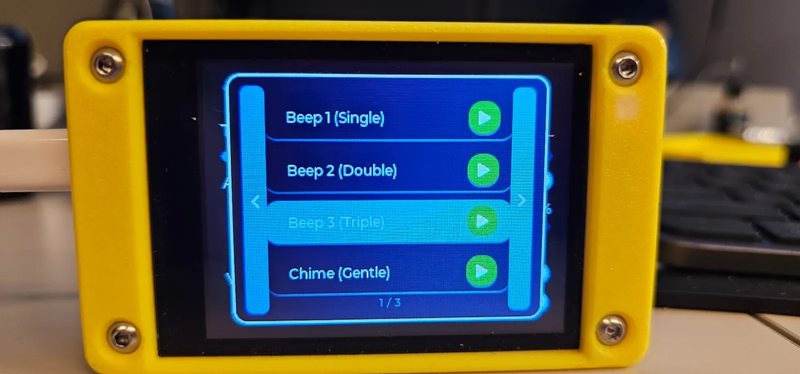
A CYGM in a yellow printed case on a desk, showing the alarm tone chooser with Beep 1, Beep 2, Beep 3 and Chime, each with a green play button.
Photograph The same board in yellow, on the bench, choosing an alarm tone.
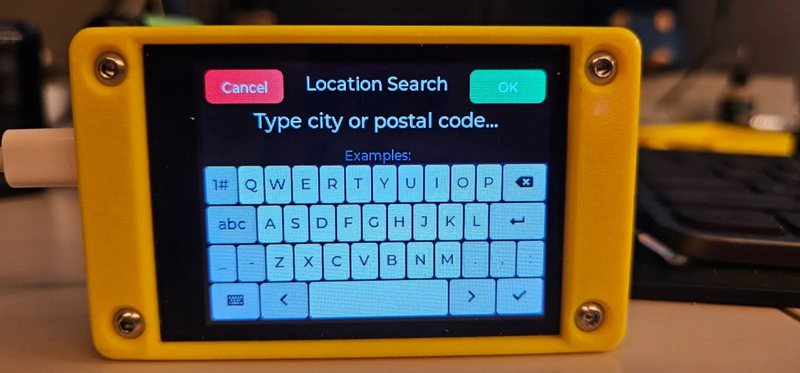
A CYGM in a yellow printed case on a desk with a USB cable attached, showing the location search screen with a Type city or postal code field above an on-screen keyboard.
Photograph Setting the weather location, typed on the device itself.

07 Getting started

If you want one of these on your own shelf

Three parts, about $40, and nothing to solder. The firmware flashes from a browser.

Captures taken on v1.1.10 Release

A second screen, not your source of truth

CYGM is an open-source, experimental secondary CGM display. It is not FDA-cleared or FDA-approved, and it has not been clinically validated. It shows readings that have already travelled through your own CGM's app and cloud service, so it can lag, gap or fail independently of them.

Never use it as the sole basis for a treatment decision, and never rely on it as your only alarm. Always confirm on your prescribed CGM receiver or app before dosing or treating.

Devices online

Loading

Grouped by city, never by device. A city appears when at least one device there has checked in within the last half hour. Placement is approximate.